Back to blog

22 Oct 2026

WhatsApp Template Rejected? 12 Reasons Meta Declines Templates and How to Fix Them

Meta Message Template Approval Guide

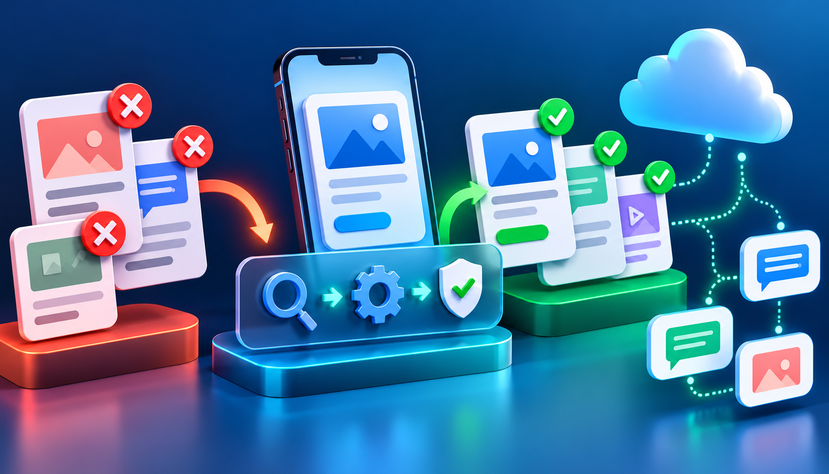
Getting a WhatsApp message template rejected can delay campaigns, customer notifications, and automated business workflows. A template may be rejected because its purpose is unclear, its category is incorrect, its wording appears promotional, or its variables and formatting do not meet Meta’s requirements.

If you are facing a WhatsApp template rejected status, the first step is to identify the reason rather than repeatedly submitting the same message. A few targeted changes can make your template clearer and more suitable for its intended purpose.

In this guide, we explain 12 common reasons Meta may reject WhatsApp message templates, how to fix them, how WhatsApp template categories work, and how to prepare stronger examples before submission.

WhatsApp Template Rejected? 12 Reasons Meta Declines Templates and How to Fix Them

Why Was Your WhatsApp Template Rejected?

Understand the issue before resubmitting

Meta reviews WhatsApp message templates to determine whether their content, category, formatting, and intended use meet its policies and requirements. Approval is not guaranteed simply because a template uses professional language or has been approved previously.

Start by checking the rejection reason shown in WhatsApp Manager or the relevant API response. The exact reason can help you determine whether you need to rewrite the message, change its category, correct its variables, or address a policy concern.

Common problem areas include:

  • Incorrect template category
  • Promotional language in a utility template
  • Unclear or misleading message content
  • Poorly formatted variables
  • Missing context for dynamic values
  • Non-compliant links or calls to action
  • Content that conflicts with WhatsApp policies

Understanding these issues helps you improve the template before submitting it again.

12 Reasons Meta Rejects WhatsApp Templates and How to Fix Them

Practical fixes for common template approval problems

1. Incorrect WhatsApp Template Category

One common reason for rejection is selecting a category that does not match the actual purpose of the message.

WhatsApp template categories generally include Marketing, Utility, and Authentication. A message about a completed order may qualify as Utility, while a message promoting a new product is generally Marketing.

Example of a potential mismatch

Submitted template:

“Your order has been confirmed. Shop our new arrivals today and get exclusive offers!”

The first sentence is transactional, but the second promotes products. That promotional content can make the overall template unsuitable for the Utility category.

How to fix it

  • Separate transactional notifications from promotional campaigns.
  • Select the category that matches the message’s actual purpose.
  • Remove promotional content from templates intended for Utility use.
  • Review Meta’s current category definitions before submitting.

For more context, see FlyingStars’ WhatsApp Business API Solutions.

2. Promotional Content in a Utility Template

Keep transactional messages focused on the transaction

Utility templates are intended for specific, non-promotional interactions, such as order updates, appointment reminders, or account-related notifications that meet Meta’s requirements.

Adding discounts, product recommendations, upselling language, or unrelated offers may cause a message to be classified as Marketing instead.

Example that may create a problem

“Your payment was successful. Get 20% off your next purchase with our exclusive offer!”

Better Utility example

“Your payment of ₹{{1}} for order {{2}} was received successfully. Thank you for your purchase.”

The revised message focuses on the payment rather than introducing a separate promotion.

How to fix it

Keep Utility templates relevant to the specific transaction or request. If you want to include promotional content, create a separate Marketing template and ensure you have the appropriate customer permission.

3. Vague or Misleading Message Content

Make the purpose immediately clear

A template that uses unclear language may be difficult for reviewers and recipients to understand. Messages should explain why the customer is receiving them and what action, if any, is required.

Example

“Your request has been processed. Click here to continue.”

This message does not identify the request or explain what the recipient will find at the link.

Improved example

“Your support request {{1}} has been updated. View the latest status in your support account.”

How to fix it

  • Identify the transaction, service, or request.
  • Explain the reason for contacting the customer.
  • Use a clear and relevant call to action.
  • Avoid misleading urgency or claims that cannot be substantiated.

4. Incorrect or Unclear Variables

Give every dynamic value a clear purpose

WhatsApp templates can contain variables that are replaced with customer-specific information at send time. Problems can arise when placeholders are unclear, incorrectly formatted, or used without enough context.

Example of weak wording

“Hello {{1}}, your {{2}} is ready.”

The message does not explain what the second variable represents.

Improved example

“Hello {{1}}, your order {{2}} is ready for dispatch.”

How to fix it

  • Use variables only where dynamic information is required.
  • Make the surrounding text explain what each value represents.
  • Follow the required variable syntax.
  • Provide realistic sample values when the submission workflow requests them.
  • Check that your integration replaces variables correctly when sending messages.

5. Missing Context for Dynamic Content

Help reviewers understand how the message will appear

Even when variables are correctly formatted, a template can be difficult to evaluate if the submitted examples do not show what the final message will communicate.

For example, “Your {{1}} has been approved” may be unclear if the reviewer cannot tell whether the variable represents a loan, account, booking, or application.

How to fix it:Write the message so its purpose remains clear without relying entirely on dynamic values. Where requested, provide representative sample values that accurately demonstrate the intended use.

Example : “Your application {{1}} for the {{2}} service has been approved.”
Ensure the sample values reflect the actual business workflow. Do not use misleading examples to make a template appear compliant.

6. Spelling, Grammar, or Formatting Errors

Review the message as a customer would read it

Typographical errors, broken formatting, excessive punctuation, and inconsistent wording can make a template look unprofessional or unclear.

Example
“Hi {{1}}!!! Your order has been confimed… click link now!!!”

Improved example
“Hi {{1}}, your order {{2}} has been confirmed. You can review your order details using the link below.”

How to fix it

  • Check spelling and grammar.
  • Remove unnecessary punctuation and repeated symbols.
  • Use consistent capitalization.
  • Keep the message concise and readable.
  • Test how the final message looks on a mobile device.

Good writing does not guarantee approval, but it improves clarity and helps avoid preventable errors.

7. Unsupported or Misleading Claims

Make sure every claim can be justified

Templates containing exaggerated promises, deceptive offers, or unsupported claims can create policy concerns.

Examples may include guaranteed financial returns, claims of instant approval when approval is not guaranteed, or statements suggesting that a customer must act immediately when no such requirement exists.

How to fix it
Use accurate wording that reflects the actual service or transaction. Explain genuine deadlines and requirements clearly, and avoid claims that cannot be verified.

For example, replace “Your loan is guaranteed” with “Your loan application status has been updated,” if that accurately describes the event.

The exact acceptability of a message depends on its content, context, and applicable policies.

8. Unclear or Suspicious Links

Ensure links are relevant and trustworthy

Templates that contain unexpected links, misleading destinations, or URLs unrelated to the message may raise concerns.

Example

“Your delivery is delayed. Claim your compensation here: [unrelated link]”

The destination does not clearly match the stated purpose.

How to fix it

  • Use links that lead to relevant business pages or customer account workflows.
  • Make the destination consistent with the message.
  • Avoid disguising the real purpose of a link.
  • Test URLs before submission.
  • Use approved domain and link practices relevant to your WhatsApp setup.

For a shipping notification, the link should lead to a relevant tracking or order-status page, not an unrelated promotional destination.

9. Inappropriate or Non-Compliant Content

Review the message against applicable policies

A template may be rejected if its content promotes prohibited activities, violates applicable commerce or messaging policies, or otherwise conflicts with Meta’s requirements.

Approval may also depend on the industry, product, service, and specific claims used in the message.

How to fix it

Review the relevant WhatsApp Business Messaging Policy and any applicable commerce or industry-specific restrictions. Remove prohibited or misleading content, and do not attempt to bypass review by disguising the message’s purpose.

If the use case is restricted, changing a few words may not resolve the underlying problem.

10. Excessive or Unnecessary Promotional Language

Keep the message aligned with its declared purpose

Marketing templates can contain promotional content, but they should still accurately represent the offer and comply with applicable policies. Utility templates should not be used to disguise marketing campaigns.

Example of a mixed-purpose message

“Your appointment is confirmed. Buy our premium package now and save 30%!”

The first sentence communicates an appointment update; the second introduces an offer.

How to fix it

Use separate templates for separate purposes.

  • Use a Utility template for an eligible appointment confirmation.
  • Use a Marketing template for a promotional offer.
  • Ensure that marketing messages follow the applicable consent and messaging requirements.

Separating these messages can make the purpose of each template easier to understand.

11. Template Structure or Button Configuration Problems

Check every component, not just the message text

A template can contain a body, header, footer, buttons, and dynamic variables, depending on its design. Problems may arise from unsupported component combinations, invalid button settings, or mismatches between the submitted template and the message sent through the API.

How to fix it

  • Confirm that the selected format supports your intended components.
  • Check button labels, destinations, and configuration.
  • Validate variable positions and sample values.
  • Ensure your API integration uses the approved template structure.
  • Check current Meta documentation for component-specific requirements.

If a template is approved but sending fails, investigate the API request and configuration as well. An approval issue and a message-delivery issue are not necessarily the same problem.

12. Repeated Resubmissions Without Fixing the Root Cause

Change the underlying issue before trying again

Resubmitting the same template with minor cosmetic edits may not resolve the reason for rejection. Repeated attempts can also delay the launch of a campaign or workflow.

How to fix it

  • Read the rejection reason carefully.
  • Identify the specific wording, category, variable, link, or policy issue.
  • Rewrite the affected part of the template.
  • Confirm that the revised category matches its purpose.
  • Review the entire message, not just the changed sentence.
  • Resubmit through the supported workflow and monitor the status.

If the reason remains unclear, consult the relevant WhatsApp Manager information, API error details, or available support channels rather than guessing at the cause.

Utility vs Marketing Template: What Is the Difference?

Choose the category based on the message’s real purpose

WhatsApp template categories are important because they help define the type of communication a business intends to send. The content and context determine the appropriate category, so adding a transactional sentence to a promotional message does not automatically make it Utility.

Feature Utility Marketing
Main purpose Eligible transaction, account, or service updates Promotions, offers, product discovery, or re-engagement
Example Order status update New product launch offer
Promotional content Should not be added to disguise marketing May be appropriate when compliant
Typical use case Booking confirmation or payment update Discount campaign or product promotion
Key consideration Must meet current Utility requirements Must meet Marketing policies and applicable consent requirements

Authentication is another category, used for eligible verification workflows such as one-time passcodes.

Meta determines the category according to its current rules and review process. Do not assume that a category selected during submission will necessarily be retained.

WhatsApp Template Examples by Category

Use examples as a starting point, not a guarantee of approval

These are illustrative examples. The correct category, required wording, formatting, and approval outcome depend on Meta’s current requirements and the complete template configuration.

Utility template example: Order confirmation

“Hi {{1}}, your order {{2}} has been confirmed. You can check your order status using the link below.”

Utility template example: Appointment reminder

“Hello {{1}}, this is a reminder of your appointment on {{2}} at {{3}}. Please contact us if you need assistance.”

Marketing template example: Promotional offer

“Hi {{1}}, explore our latest collection and discover offers available to you. Visit {{2}} to learn more.”

Authentication template example: Verification code

“Your verification code is {{1}}. Do not share this code with anyone.”

WhatsApp Message Template Guidelines Before Submission

Use this checklist to reduce avoidable errors

Before submitting a new template or resubmitting a rejected one, check the following:

  • The message has a clear and legitimate purpose.
  • The selected category matches the actual content.
  • Utility templates do not contain unrelated promotional material.
  • Variables follow the required syntax.
  • Sample values are representative and accurate.
  • The message is grammatically correct and easy to understand.
  • Links and buttons lead to relevant destinations.
  • Claims are accurate and not misleading.
  • The content complies with relevant WhatsApp policies.
  • The template components match the intended use.
  • The business has the appropriate permission or consent for the messaging use case.
  • The rejection reason has been addressed before resubmission.

Meta’s requirements can change. Review the current official documentation before relying on any checklist as a definitive approval rule.

How FlyingStars Can Help with WhatsApp Business Messaging

Build more structured messaging and automation workflows

Template approval is only one part of running a reliable WhatsApp Business messaging operation. Businesses also need to connect messaging with customer data, support processes, sales workflows, and reporting.

FlyingStars provides WhatsApp API-related solutions for business communication, automation, customer engagement, and system integration.

Explore these resources to understand the available approaches:

Need help planning your WhatsApp messaging workflow? Explore the relevant FlyingStars solution page or contact the team to discuss your business requirements.

Conclusion: Fix the Cause, Not Just the Wording

A rejected WhatsApp template does not always mean the entire message needs to be rewritten. The right fix depends on the reason for rejection, the category selected, the template structure, and the applicable policy.

Start by checking the rejection details, correcting the underlying issue, and reviewing the complete template before resubmission. Clear, relevant messaging and accurate category selection can help reduce avoidable submission problems.

For businesses managing customer communication at scale, a well-planned WhatsApp API workflow can also help organize notifications, customer support, and marketing communication more effectively.

Explore FlyingStars WhatsApp Business API Solutions to learn more about business messaging and automation options.

Frequently Asked Questions


Possible reasons include an incorrect category, promotional content in a Utility template, unclear wording, variable-format issues, unsuitable links, or policy concerns. Check the specific rejection reason before making changes.

Use clear wording, select the correct category, format variables correctly, provide representative examples where requested, and verify compliance with current Meta policies. These steps can reduce avoidable errors, but approval is not guaranteed.

The main categories are Marketing, Utility, and Authentication. Each serves a different purpose, and the correct classification depends on the message’s content and intended use.

Utility templates are intended for eligible non-promotional updates related to a transaction, account, or service. Marketing templates are used for promotional and other eligible marketing communications, such as offers and product announcements.

A discount or promotional offer can make a message unsuitable for the Utility category. Keep transactional updates separate from promotional messages and use the appropriate category for each.

You can follow the available review or resubmission process, depending on the rejection and the options available in your account. Address the stated issue before trying again.

Variables may be incorrectly formatted, unclear, or missing representative sample values where those are required. Check the template syntax and make sure the surrounding message explains the purpose of each variable.

No. Template approval and message delivery are different stages. Delivery can also depend on recipient availability, account and messaging restrictions, API configuration, and other factors.

Meta may classify or reclassify a template according to its current category rules. Review the category status shown in your WhatsApp management tools rather than assuming the requested category is final.

Visit FlyingStars’ WhatsApp API Services page to explore enterprise messaging, integration, and automation solutions.

Explore Related Blogs


Get the latest news and
blog updates